Introduction
Hard drives rarely fail without warning. The problem is that the warnings are easy to miss. A slight slowdown, an occasional error, a sound you have not heard before, all these are easy to dismiss as normal system behavior. By the time something more obvious happens, data may already be at risk.
Knowing the early signs of hard drive failure gives you time to act. This guide covers the most common warning signs for both HDDs and SSDs, what they indicate, and what to do when you spot them.
Why Hard Drives Fail
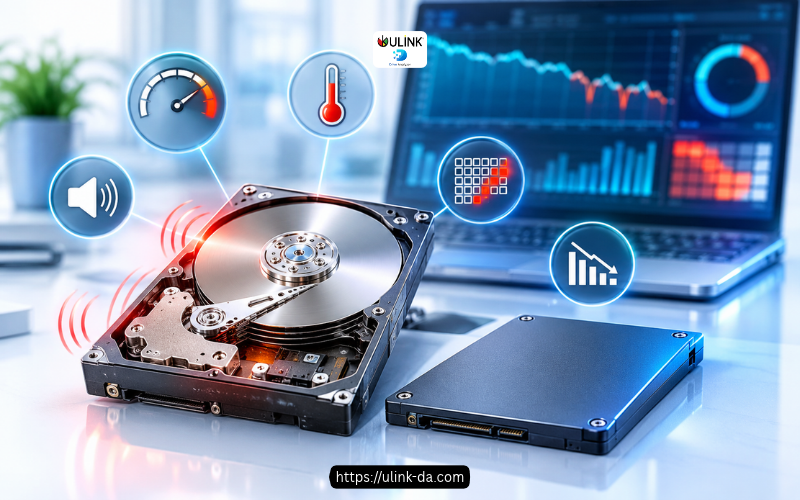
Hard drives fail for a variety of reasons: mechanical wear, manufacturing defects, firmware bugs, overheating, power surges, and simply reaching the end of their operational lifespan. HDDs are particularly vulnerable to physical shock and gradual mechanical degradation. SSDs are more resilient physically but have a finite number of write cycles.
Catching drive failure signals early is what separates a drive you replace on your schedule from one that takes your data with it.
8 Early Warning Signs of Hard Drive Failure
1. Slow Read and Write Performance
If file transfers, application load times, or boot sequences have become noticeably slower without any other explanation, the drive may be struggling. Degrading drives often take longer to read data from damaged or weakening sectors. This is one of the earliest and most commonly overlooked signs.
2. Frequent System Freezes or Crashes
Random freezes, blue screens, or unexpected restarts can have many causes, but if they happen repeatedly while reading or writing files, the storage drive is a likely contributor. When the operating system cannot reliably access the drive, it stalls waiting for a response that is slow to arrive.
3. Reallocated Sector Count Rising
This is one of the most reliable S.M.A.R.T. indicators of HDD failure. When a drive detects a bad sector, it marks it as unreadable and remaps data to a spare sector. A reallocated sector count above zero is not automatically critical, but a count that keeps rising over time is a clear sign of ongoing physical degradation. Even a single new reallocation after a period of stability deserves attention.
4. Clicking, Grinding, or Scratching Sounds
For HDDs, unusual sounds are a serious warning. A clicking noise typically means the read/write head is struggling to reach the correct position on the platter. This is sometimes called the click of death, and it often signals imminent mechanical failure. If you hear this, back up your data immediately before running any diagnostics. A grinding noise likely means that the disk surface is being actively damaged by the head.
5. Uncorrectable Error Count Increasing
S.M.A.R.T. attribute 187 (Reported Uncorrectable Errors) tracks read errors the drive could not correct internally. Any non-zero value here is worth taking seriously. Sectors that trigger uncorrectable errors oftentimes turn into reallocated sectors.
6. High or Unstable Operating Temperature
Drives operating consistently above their rated temperature range degrade faster. For most HDDs, the safe operating range is 0 to 60 degrees Celsius, though sustained operation above 45 to 50 degrees accelerates wear. Sudden temperature spikes without a change in workload can also indicate a cooling problem or early drive distress.
7. Pending Sector Count Above Zero
S.M.A.R.T. attribute 197 (Current Pending Sector Count) tracks sectors that the drive has flagged as potentially unstable but has not yet reallocated. These are sectors where data could not be read reliably. Pending sectors sometimes resolve on their own, but a rising count means the drive is finding more trouble than it is resolving.
8. Files That Become Corrupted or Disappear
If files you have not touched become corrupted, produce errors when opened, or vanish without explanation, the drive may be misreading or miswriting data. This is a late-stage warning sign and means data is already being affected. At this point, an immediate backup is essential.
What to Do When You Notice These Signs
The first step is always the same: back up your data before running any further tests. A diagnostic scan on a physically degrading drive can stress it further.
Once your data is safe, the next step is a proper health assessment. Standard S.M.A.R.T. tools will show you current attribute values, but they have a known limitation: they check whether a threshold has been crossed, not whether a drive is trending toward one. A drive can be deteriorating steadily and still show a “good” status right up until it fails.
This is the gap that DA Drive Analyzer by ULINK was built to close. Rather than relying on fixed thresholds, it uses an AI model trained on data from over 2 million real-world drives to analyze behavioral trends over time. It detects up to 13.7x more failing drives than S.M.A.R.T. threshold alerts alone, and delivers its first prediction within 24 hours of installation.
It supports HDDs and SSDs across SATA, SAS, and NVMe on Windows, QNAP NAS, and ASUSTOR NAS, covering 99%+ of commercially available drive models.
How Often Should You Check for These Signs?
| Situation | Recommended Action |
| Routine maintenance | Check S.M.A.R.T. data every 1 to 3 months |
| After a power outage or system crash | Check immediately |
| Before a large data transfer or system upgrade | Check before you start |
| Unusual sounds, slowdowns, or errors | Back up first, then check |
| Annual deep check | Full surface scan once a year for HDDs only |
Frequently Asked Questions
How do I know if my hard drive is failing?
The most common indicators are slow performance, frequent system freezes, unusual sounds from the drive, rising S.M.A.R.T. error counts such as reallocated sectors or uncorrectable errors, and files that become corrupted without explanation. Any one of these on its own is worth investigating. Multiple signs appearing together means you should back up immediately and assess the drive.
Can a hard drive fail without any warning signs?
Sudden failures without any preceding signs are possible but uncommon among HDDs. Most hard drives show behavioral changes before they fail. The challenge is that standard monitoring tools often do not surface these changes until a threshold is already crossed. AI-based tools that track trends over time catch degradation significantly earlier than threshold-based alerts alone.
What is the difference between a bad sector and a failing drive?
A single bad sector does not necessarily mean a drive is failing. Drives are designed to handle a small number of bad sectors by remapping data to spare areas. The concern is a count that keeps rising over time, which suggests the problem is spreading rather than isolated. A stable bad sector count with no growth is a different situation from one that increases week by week.
How is DA Drive Analyzer different from standard S.M.A.R.T. tools?
Standard S.M.A.R.T. tools check whether individual attributes have crossed a fixed threshold. DA Drive Analyzer analyzes multiple health signals together and tracks how drive behavior changes over time, which is where early failure patterns tend to appear first. It detects up to 13.7x more failing drives than S.M.A.R.T. threshold alerts alone and delivers its first prediction within 24 hours of installation. Learn more at ulink-da.com.
Should I replace a drive that shows early warning signs?
Not necessarily right away, but you should treat it as a drive on borrowed time. Back up your data, monitor it closely, and plan a replacement on your schedule rather than waiting for a failure to force your hand. The goal of catching early signs is exactly this: keeping the decision in your control.
The Bottom Line
Hard drives give you signals before they fail. Slow performance, rising error counts, unusual sounds, and S.M.A.R.T. attribute changes are all part of a pattern that develops over time. The difference between losing data and replacing a drive cleanly comes down to whether you catch those signals early enough to act.
Standard monitoring tools show you a snapshot. DA Drive Analyzer tracks the trend, identifies which drives are heading toward failure, and gives you time to do something about it before the situation becomes an emergency.
Start your free trial at ulink-da.com – no credit card required.
Predict Drive Failure Before It Happens with Our Drive Health Checker
AI-powered drive health monitoring and diagnostic software for HDD & SSD drives on Windows PC, ASUSTOR NAS, and QNAP NAS
Try DA for Windows PCTry DA for ASUSTOR NASTRY DA for QNAP NAS